
Jump to: [ipconfig Commands] | [Ping Commands] | [Networking Commands]
A list of Windows DOS ipconfig commands and networking commands available from the Command Prompt in Windows. Such as ipconfig, ping, tracert, and more. These command line tools are used to troubleshoot internet issues and local networking hangups. Please comment below if you have any questions.
ipconfig Commands
Display Full ipconfig Configuration: ipconfig /all
Release All IP Addresses: ipconfig /release
Renew All IP Addresses: ipconfig /renew
Display DNS Resolver Cache: ipconfig /displaydns
Clear DNS Resolver Cache: ipconfig /flushdns
Fresh Register DNS Connections: ipconfig /registerdns
Ping Commands
Ping IP Address: ping 127.0.0.1
Ping Website: ping stickystatic.com
Continuous Ping: ping -t 127.0.0.1
Ping X Amount of Times: ping -n 10 127.0.0.1
Ping A Sized Packet: ping -l 1500 127.0.0.1
Ping Timeout Limit: ping -w 5000 127.0.0.1
Resolve Host Name: ping -a 127.0.0.1
Networking Commands
Trace Route: tracert stickystatic.com
Get a sites IP: nslookup website.com
Displays all active TCP connections: netstat -a
Find your MAC Address: getmac
Display other devices on network: arp -a
Winsock Reset: netsh winsock reset
TCP/IP reset: netsh int ip reset resetlog.txt
The ipconfig command is used to find out your current local IP address, default gateway, TCP/IP settings and more. With IPCONFIG you can not only find out your IP Address, find your default gateway and find your subnet mask, you can release and renew, resolve the DNS, troubleshoot internet connections and more. This is a very handy network tool for finding your local IP address as well as many other secrets.
ipconfig cmd explained
ipconfig /all
To display all of your current IP information for all adapters. With ipconfig /all you can also find out your DNS Server and MAC Address. This will show your ethernet adapters full TCPIP configuration for all adapters on your Windows computer. You can find out your own IP Address as well as your default gateway.
ipconfig /release
Use IPCONFIG release to release your current IP information and obtain a new IP Address from the DHCP server.
ipconfig /renew
Use to IPCONFIG renew to renew your IP Address if you have it set to obtain IP Address automatically.
ipconfig /displaydns
This shows your current DNS resolver cache logs. DNS caching basically tells your computer to store the DNS locally. Meaning it now knows what website name is attached to what IP address and it can load faster using the DNS cache instead of having to resolve to it.
ipconfig /flushdns
The Flush DNS Command flushes or clears your current DNS resolver cache logs. If a website were to switch hosts or get a new IP address, yet still have an old DNS cache, it would direct you to a no longer working site. In this case, you would have to flush the DNS to obtain fresh information upon your next visit. This can happen if a website has a dynamic IP.
ipconfig /registerdns
The register DNS command updates the DNS settings on the Windows computer. It doesn’t just access the local DNS cache, it initiates communication with the DNS server and the DHCP server so it can re-register the network address. You can use this for troubleshooting problems with connection to the ISP (Internet Service Provider), like failing to obtain a dynamic IP address from the DHCP Server or failing to connect to the ISP DNS server.
If you ever wonder "what your IP Address is" you would run an ipconfig as shown above. Note, this will only show you your local network private IP address and not your WAN address. If you need to find your IP address, default gateway(router login) or subnet mask, then ipconfig is the command prompt tool to use. These numbers can be very helpful when troubleshooting your internet connection. If you have changed your settings, but they are not taking place, you may try a ipconfig release and renew. If you’re having problems resolving to a website, you may try flushing your DNS Resolver Logs.
ping cmd switches
In all of these examples “xxx.xxx.xxx.xxx” is an example of a Domain Name or an IP Address. You must fill those out yourself.
ping xxx.xxx.xxx.xxx
To Ping an IP Address you would type the following DOS Command in the Windows Command Prompt. Ping followed by an IP address. That is how you do an internet ping.
ping site.com (web address)
To ping a website, you would type ping followed by the website domain name. If you know the website’s IP Address you can ping it too.
ping xxx.xxx.xx.xx -t
Continuous Ping – It will keep on pinging forever until you hit Ctrl + C to stop it. This can be great for troubleshooting intermittent connections. Just open up a Command Prompt(or 3) and run the continuous ping command on a site like Google.com to see when you’re dropping packets. I would also run one on your router and on another site like site.com for a better data sample control group. What I mean by this is if you’re pinging your website and losing packets yet not losing packets to Google, you know the problem is somewhere between you and your hosting company. If you are losing packets to your own router, the problem is with your local network. It could be the cat5 cable, your router or your hardware. You will have to do further troubleshooting to figure out where the problem is. To check if it is your router, do the same ping from another computer and if it is fine, it is your hardware or cable and not the router. You get the idea, use your head, be logical, troubleshoot.
ping xxx.xxx.xx.xx -n 10
Number of Pings – The N Switch is simply for setting the number of pings. By default, the ping cmd sends out 4 packets at 32 bytes each.
ping xxx.xxx.xx.xx -l 1500
Size of Packet – By default, the packets sent are a small 32 bytes. You can set your own size up to the max 65500 bytes. This can really help with stress testing your local network.
ping xxx.xxx.xx.xx -w 5000
Time Out – This is in milliseconds. The timeout by default is 4,000 milliseconds which amounts to 4 minutes. Just seeing if you were still paying attention. It really is only 4 seconds.
ping -a xxx.xxx.xx.xx
Resolves Hostname Address – This is a great one if you are helping someone else and need to find out what router model they are using. You can resolve the host of an IP Address with this command. Try pinging your router or your local computer with it. ping -a 127.0.0.1. Note that this switch will only work in front of the IP Address.
The Ping command is a network tool used to determine if you are able to send packets between your network computer on the internet to another computer without losing packets along the way. By doing this you can determine if you’re online or if a website is down. It also calculates round trip time and Time to Live. This can let you know if your NIC card is working properly and if you can reach your router or modem. It is an invaluable command for troubleshooting internal network and external internet connections.
Basic Windows Network Tools
tracert site.com
With Trace route you can trace the path your packets take across the internet from you to your destination. Along the way you can determine the time from hop to hop. You can identify server problems and latency with this tool. It really helps see where the failure is between you and a destination. It may very well even be out of your hands.
nslookup site.com
nslookup xxx.xxx.xxx.xxx
nslookup is a way to get the IP address for a domain name. You can also do a reverse lookup from Domain Name to IP Address. It can be a way to find out if your DNS is properly working or if the site is having problems. You can obtain an IP from a site and try to visit the IP directly, bypassing the Domain Name Servers that would usually resolve the Domain name to IP name.
netstat
netstat can be used to view your active network connections and TCP/IP connections. You can determine what ports are open and being used, what programs are using your ports and what kind of TCP and UDP connections are present. Looking in here for the first time may scare the hell out of you.
netstat Switches
netstat -a Displays all active TCP connections. And TCP / UDP ports.
netstat -e Displays ethernet statistics.
netstat -b Displays all active programs that are listening.
netsh winsock reset winsock reset
netsh int ip reset resetlog.txt TCP/IP reset
netsh is used to reset or rebuild the Windows TCP/IP IP Stack. This can be done if you have a problem with DNS. Say you are able to browse to a sites IP address but not to it’s Domain Name. You can find the sites IP by using nslookup mentioned above.
You may need to run this command as an administrator by right-clicking, run as admin for elevated permissions.
getmac
How do I find my MAC Address you might ask?
If you open up the command prompt you simply type getmac to get your computers local MAC address.
arp -a
To get the MAC address of your router or other devices on your local network, you may use the arp -a command. With this information, you can find out what type of router you are connected to by using this website. Simply plug in the MAC Address of your default gateway(found from IPCONFIG) and you can get the brand name of your router without looking at it. Pretty neat. Helpful in some situations.
How To Access Windows DOS Command Prompt
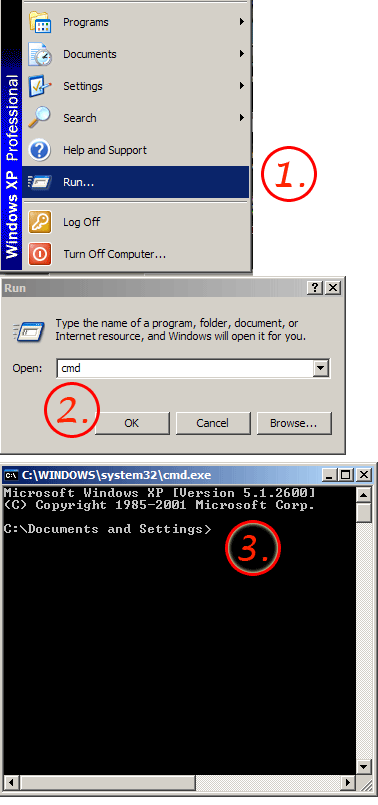
The best command prompt trick is how easy it is to access it. On Windows XP, Vista, Windows 7 or Windows 8 just press and hold the Windows Key + R on your keyboard. The other way to access the DOS Command prompt is to simply go to your Windows Start menu, Then go to Run. When the little box pops up you type in cmd. Once the Black Command Prompt pops up you can type any of these commands in and have some fun!

Hi,
I wanted to know if there is a way to automatically ping all the ESTABLISHED connections (with the default 32 bytes of data four times and see which time did they take and how many were lost) after doing a netsat without typing their IP addresses by using a .BAT file
Simply type time in cmd it will give you information of time.
Thanks for the list of commands.
Hi…
Can someone tell me what is the command for ping that will show the time and date?
Actually you could ping a range of IP addresses via Powershell.
Use a starting IP address and a loop to increment each IP in the range.
E.g.:
#Ping an IP address range by IP
#Then use ARP -a to flag invalid IPs
$networkIP = “192.168.1.”
For ($i=1; $i -IT 10; $i++)
{
$IP = $networkIP + $i
ping $IP
}
Look for “Request Timed Out” in the response. If that happens – print the IP that was pinged.
No, the local IP Address does not remain constant by default.
This is known as a “dynamic IP” handed out to you by your router using DHCP.
What you want is a “static IP” but you must manually assign it.
You should be able to assign a static IP Address to your computer though and this could vary by operating system.
This is also something you are able to do from most routers GUI.
I checked my IP but when I checked it again, the IP Address changed. Is the IP address not a constant?
Thank you. Much appreciated.
Thanks to all but arp -a is use for MAC address of your router or other devices on your local network. I want a command which help me to provide a list of free ip’s addresses in a local networks?
I’m pretty sure they want IP Addresses not in use which is why the arp -a command will show addresses in use and the ones that are not are obvious.
By using the command ipconfig in command mode.
I think you could do “arp -a” to see all currently used IP’s and pick an address that is not in use?
How I find the list of free IP addresses using command prompt in local networks?
thank you
I’m assuming that’s a Samsung running the Android OS.
Connect to your wireless network.
Hold down the network you’re connected to.
Go to Modify Connection.
Hit Advanced.
Under IP Settings select Static and scroll down for DNS.
I just checked and mine is the Google DNS server address of 8.8.8.8. Maybe all Androids are?
How do I find my DNS on my Galaxy Prime phone?
This list of commands was extremely helpful, thank you so much.